Hey there!πŸ‘‹

Our team, support and all product sales will be offline December 22 – January 3 for our annual holiday break. πŸ™Œ Wishing you all a safe, happy, healthy holiday season from Team Shannon Mattern!

Heads up! BEFORE watching this video + following the steps… skip ahead to Module 4.1 – Elementor 101 + Installation and complete the Installation + Setup of Elementor before starting this module.Β 

Why, you ask? As of March 10, 2022 WordPress made an update that changed the way menus are traditionally set up in WordPress, which is what the below video covers.

Installing the Hello Elementor Theme restores that original functionality so that you can follow along with the below video seamlessly πŸ™‚

Just remember to skip Module 4.1 when you get there πŸ™‚

Pages + Menus

Direct Download Link:Β https://vimeo.com/420815231/50a7351dc2

We’ll make some blank pages (that we’ll add stuff to later) and tell WordPress which page is our Home page and which page is our Blog page.

Then we’ll add our pages to our site’s main navigation menu.

You’ll also learn how to change page names and page links.

Action Steps

1
Watch the video.
2
Create your Home, About, Blog, Work with Me and Thank You Pages.
3
Publish your Privacy Policy Page.
4
In Settings > Reading, set your Home page to the Front page and Blog page to Posts page.
5
Create a Menu and add pages to it.
6
Learn how to change page names and page URLs (links).

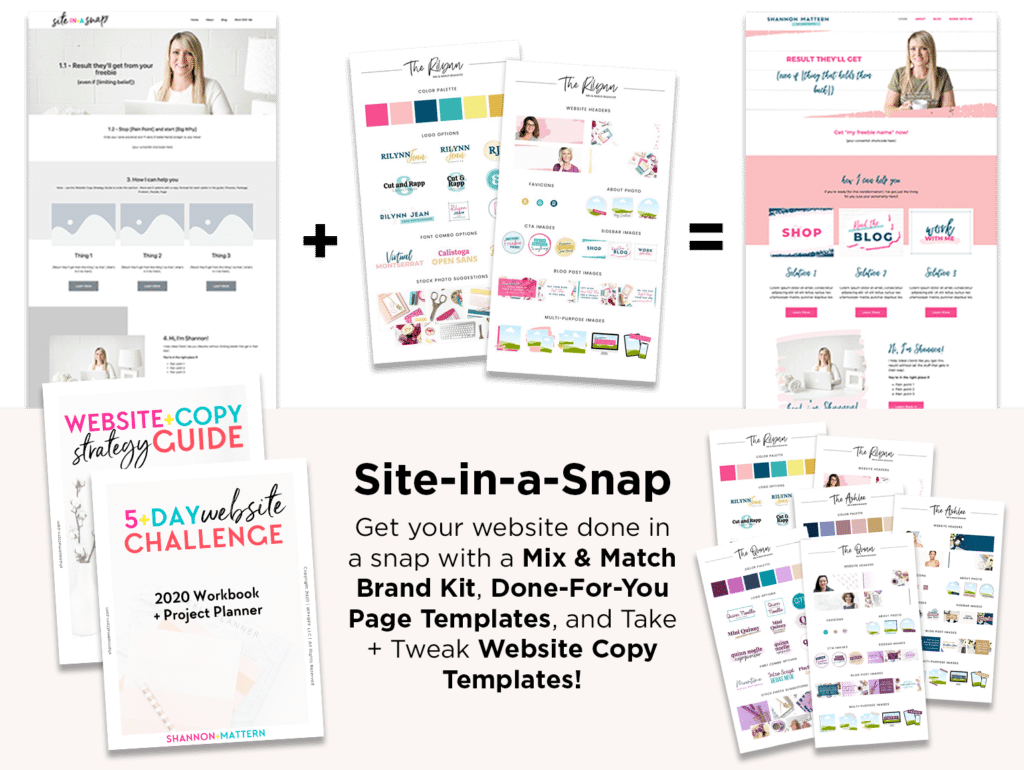
Get the Site-in-a-Snap Template Pack!

*This is an affiliate link. That means if you purchase a product I recommend using my affiliate link, I may earn a commission that allows me to keep this training free. I only recommend products and services I know, like + trust! Thanks in advance for using my affiliate links!Β